
 Action Needed
Active DocuSign transaction not closing by July 14?
If you have an active DocuSign transaction that will not close before Tuesday, July 14, 2026, use this page and the game plan graphic to protect your files. If you want live support walking through it, book a group support session during next week's extended availability, July 6-13. Use the Book Support Session button below or scroll down to the scheduler.
Start Here
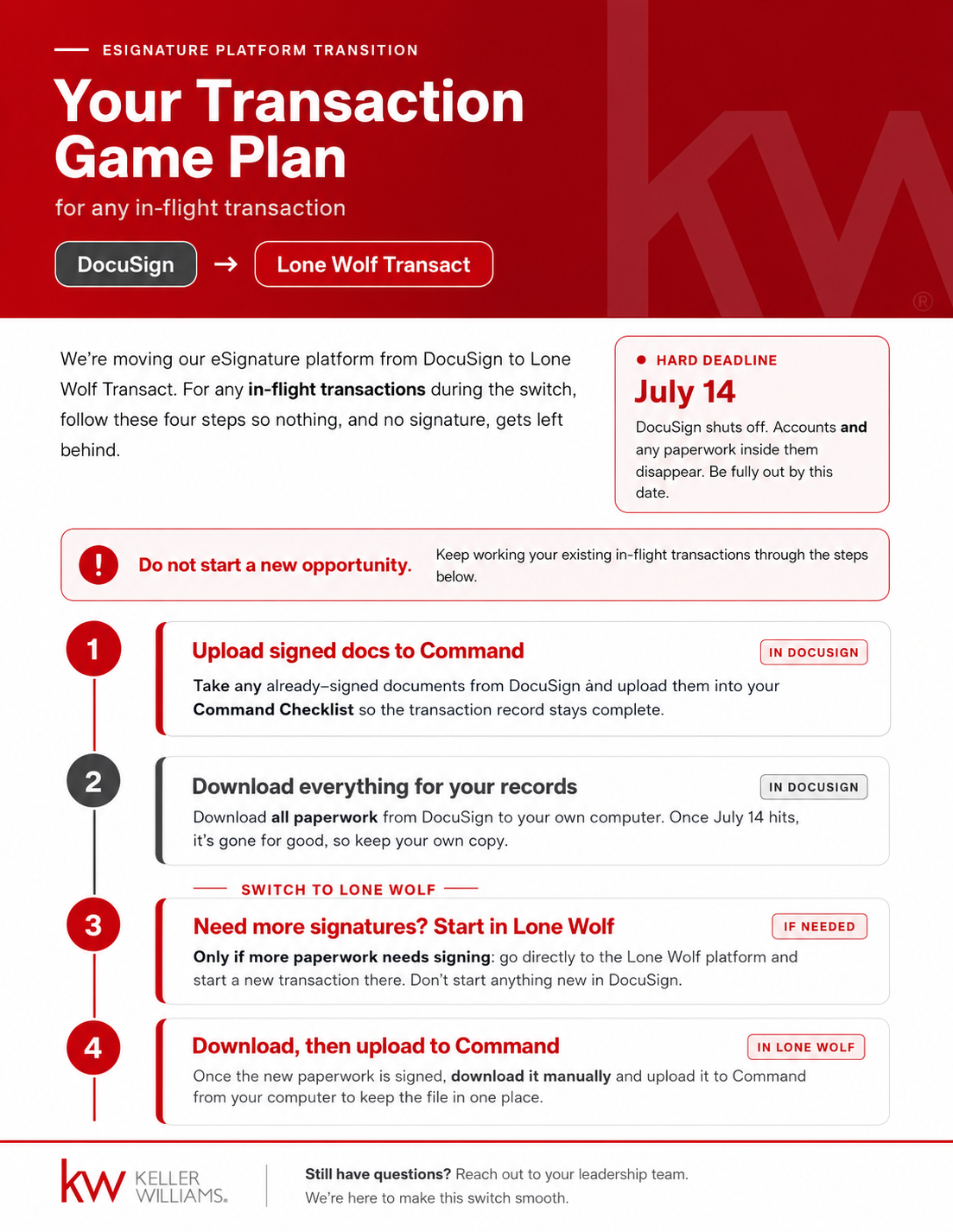
DocuSign to Lone Wolf game plan
Important difference: brand-new transactions should be started in Lone Wolf. Use this page if you already have an active Command Opportunity with DocuSign-signed documents and the transaction will not close before July 14. The steps beside the graphic show how to continue signatures after DocuSign is no longer available.
Optional Support
Need help? Book time with Joe between July 6 and July 13
Starting Monday, July 6, 2026 through Monday, July 13, 2026, Joe will have extended availability for agents who want live support preparing for the transition from DocuSign to Lone Wolf. Use this if you want help backing up documents, uploading files into Command, reviewing an active transaction, or talking through your next steps before the July 14 changeover.
If You Join a Session
We will walk through the plan together
- Back up DocuSign documents.Save the paperwork you need before access changes.
- Upload needed documents into Command.Move required files into the correct Command Opportunity Documents area.
- Save local files to your computer.Keep your own backup so you are not relying on DocuSign after the cutoff.
- Plan for transactions that stay open.Know what happens if the transaction does not close before the changeover.
- Use Lone Wolf going forward.Understand what to do once DocuSign is no longer available for signatures.
Open DocuSign Transactions
What do I do with active DocuSign stuff?
Finish, back up, and save the file
If the transaction will close before Tuesday, July 14, 2026, finish the DocuSign work, download what you need, and make sure your Command Opportunity has the documents your file should keep.
Protect the file before the cutoff
Use the self-service plan below to preserve the documents now and prepare any new signature work for Lone Wolf Transact. Book a group session only if you want live support walking through the process.
- Keep working from the existing Command Opportunity.Do not start a new Command Opportunity just because DocuSign is ending. Protect the existing file first.
- Upload already signed documents to Command.Move signed paperwork from DocuSign into the Command checklist so the transaction record stays complete.
- Download everything for your records.Save all DocuSign paperwork to your computer and keep a local backup before access changes.
- Use Lone Wolf for any signatures after July 14.If more paperwork needs signatures after the changeover, open Command, click your name, go to Settings, scroll to Lone Wolf, click Go to Transact, choose Transact Command Edition, then Start a New Transaction.
- After signing, upload the final documents back to Command.Download completed Lone Wolf paperwork to your computer, then upload it to the correct Command Opportunity.
Make sure your documents are preserved, your files are protected, and you know exactly what your next steps are before access changes on July 14.
Helpful Links
Keep moving
Use the embedded scheduler on this page if you want live support for an active DocuSign transaction that will not close before July 14.
Portal Hub Open the full Lone Wolf hubReview the protected transition hub for FAQ, recordings, and additional setup resources.
Setup Connect Lone Wolf in CommandUse the KW Answers setup guide before you need Lone Wolf for an active transaction.